How to Resize a Photo to 600 x 600 Pixels (Free, Without Uploading)
To resize a photo to 600 × 600 pixels, open the picture in a resizer, choose a 600 × 600 canvas, move the photo so your face sits in the middle, and download it as a JPEG. This size is the minimum for many visa and passport uploads, including US applications.
What 600 × 600 means
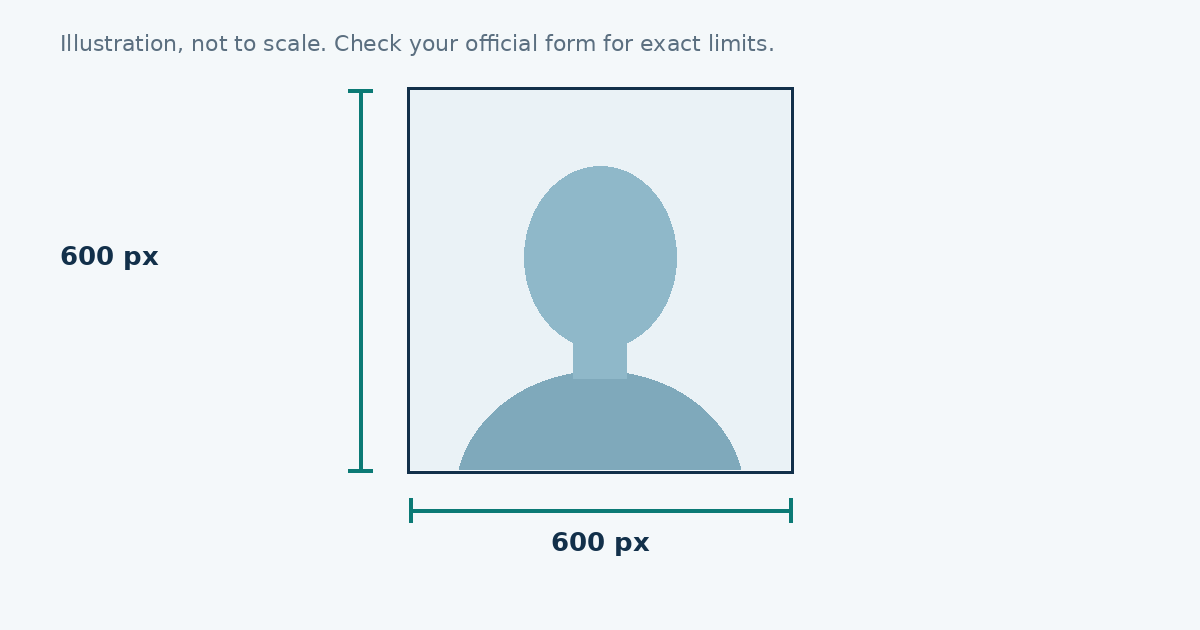
It’s a square with 600 pixels on each side. Squares are common in online forms, because the system can place the picture in the same box every time. At 300 DPI, 600 pixels is exactly 2 inches, which is how this size became the standard for US passport photos.
The quick way
- Open the free photo resizer.
- Upload your picture.
- Choose “US passport / visa”. The canvas is 600 × 600.
- Use zoom and the move boxes to centre your face.
- If your form has a file limit, type it in the box. Many forms use 240 KB.
- Press Download.
The resizing happens in your browser. Your photo isn’t uploaded to a server.
Cropping versus stretching
There are two ways to turn a rectangle into a square. You can crop it, which cuts off part of the picture, or stretch it, which squashes the image and distorts the face. Never stretch a passport photo. The resizer crops, and you choose which part to keep with the zoom and move controls.
Make sure the original is big enough
A picture below 600 pixels on either side is too small. Enlarging it doesn’t add detail. It only makes the edges soft. Check the size of your original first. Most phone photos are far bigger than you need, so you’ll usually shrink the picture, which keeps it sharp.
Resize once
Each time a JPEG is saved, it loses a little quality. If you resize the picture, then send it on a messaging app, then resize it again, the quality drops each time. Work from the original and resize one time.
Keeping the file small
A 600 × 600 JPEG with a plain background is often small already, but extra detail makes the file bigger. If the picture won’t fit under your limit, the tool lowers quality step by step. If it still can’t fit, the background is probably too busy. Retake the photo in front of a plain wall.
Does this work for other sizes?
Yes. You can pick a country preset, such as Schengen (413 × 531) or UK (600 × 750), or enter your own width and height with the custom option. The same rules apply: crop, don’t stretch, and work from the original.
Check the result
Open the finished file at full size and check four things:
- It’s a JPEG.
- It’s exactly 600 × 600.
- The face is centred and sharp.
- The file size is under your limit.
Why use a browser tool
A tool that runs in your browser keeps your photo on your device. That matters for ID photos, since they’re personal. It also means you don’t need to install an app or make an account.
What it can’t do
The tool won’t remove a background, fix shadows or correct a tilted head. If your picture has any of those problems, retake the photo. Resizing fixes size, not quality.
A closer look at cropping
When you change a photo into a square, you’re choosing a window onto the original. Slide the window so your head sits in the middle and leave a small gap above your hair. If you move the window too far up, the top of your head disappears. If you move it too low, you lose the shoulders, which many applications want to see.
What happens to the quality
Shrinking a large picture to 600 × 600 usually looks clean, since you’re throwing away extra detail. The file also gets much smaller. But if you start with something small, like a 640 × 480 thumbnail sent from a messaging app, you lose a lot when you crop it into a square. Try to begin from the largest version you have.
Use cases beyond passports
A 600 × 600 picture suits more than visa forms. It’s a common size for profile pictures, exam registration forms and some online job applications. The same steps work. Choose the size, centre the subject and set the file limit.
Troubleshooting
| Problem | What to try |
|---|---|
| The photo looks stretched | Use the crop and zoom controls, not width and height changes |
| The file is still too big | Lower the limit step, or retake it against a plainer background |
| The face is cut off | Reduce zoom and move the picture down |
| The upload form says wrong size | Check whether the form asks for exactly 600 or a range |
| The picture is too dark | Retake in daylight, don’t brighten it with a filter |
One last check
Before you upload, open the downloaded file again and look at it at full size. This takes ten seconds and catches most of the mistakes that cause a rejected upload.
Sources
Frequently asked questions
How do I resize a photo to 600 x 600 pixels?
Open a resizer that supports custom or preset sizes, pick 600 x 600, position your face, and download the result.
Will resizing make my photo blurry?
Shrinking a large photo keeps it sharp. Enlarging a small photo makes it look soft, because no new detail is created.
Does a 600 x 600 photo need to be square?
Yes. 600 x 600 is square. A different height will stretch or crop the picture.
How do I keep the file under 240 KB?
Set the maximum file size in the resizer. It lowers JPEG quality step by step until the file fits.